

How to keep notes visible on your Mac desktop
Published
Put a short note or list where you can see it. Choose between a desktop widget and a sticky-note window, and set up your first Scribs widget.
Give one note a job
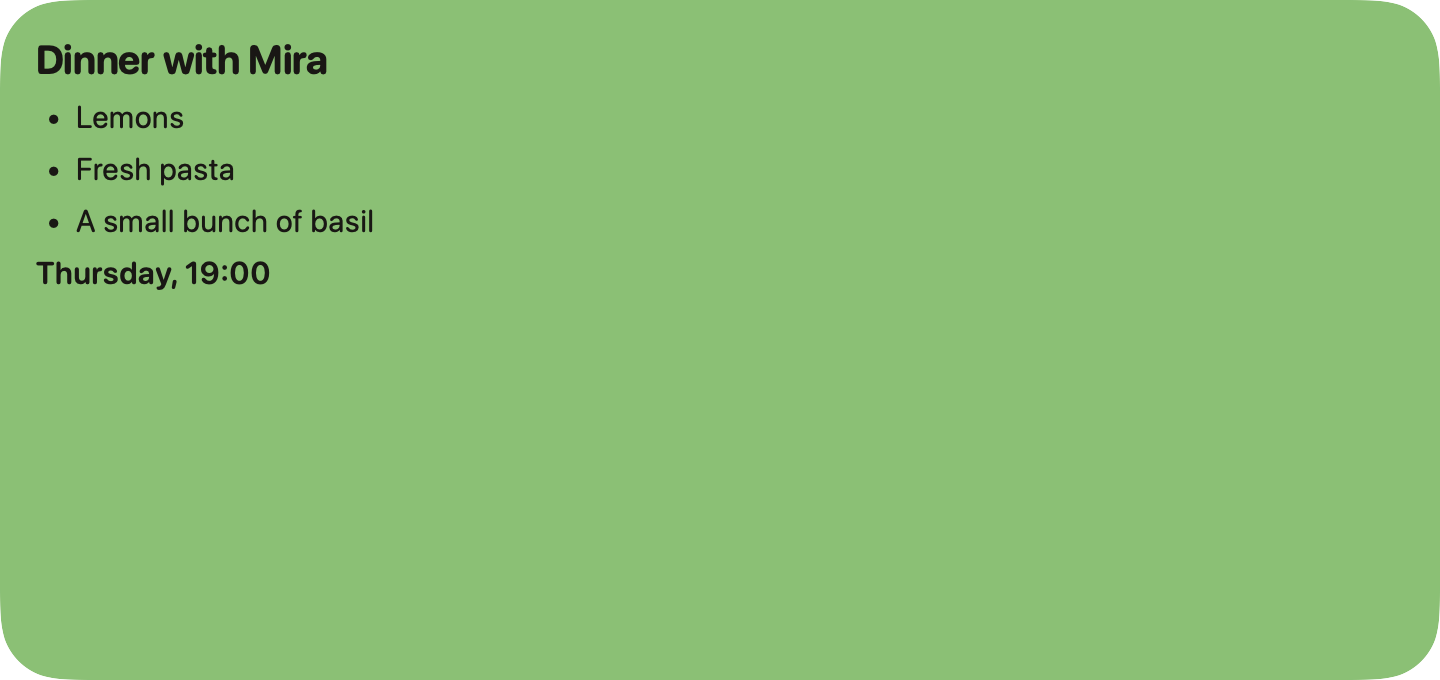
Start with something you actually want to glance at: the few things for today, ingredients for dinner, or a sentence you keep looking up. A desktop covered in everything you have ever written is still a place to lose a note.
Keep the first note short enough to recognise without opening another window. For a shopping list, “lemons, rice, tomatoes” is more useful than a folder named Personal administration.
Choose a widget or a sticky-note window
A widget lives on your desktop. It is useful when you want a stable place to glance at a note. A sticky-note window behaves like an app window, which may suit you better if you want to move the note around while working.
Your Mac includes Stickies. Scribs is another option when you want your saved writing in desktop widgets, with four sizes, colours, and simple formatting. Scribs requires macOS 14 or later. Its widgets are not a promise that a note will float above every other window.
Put your first Scrib on the desktop
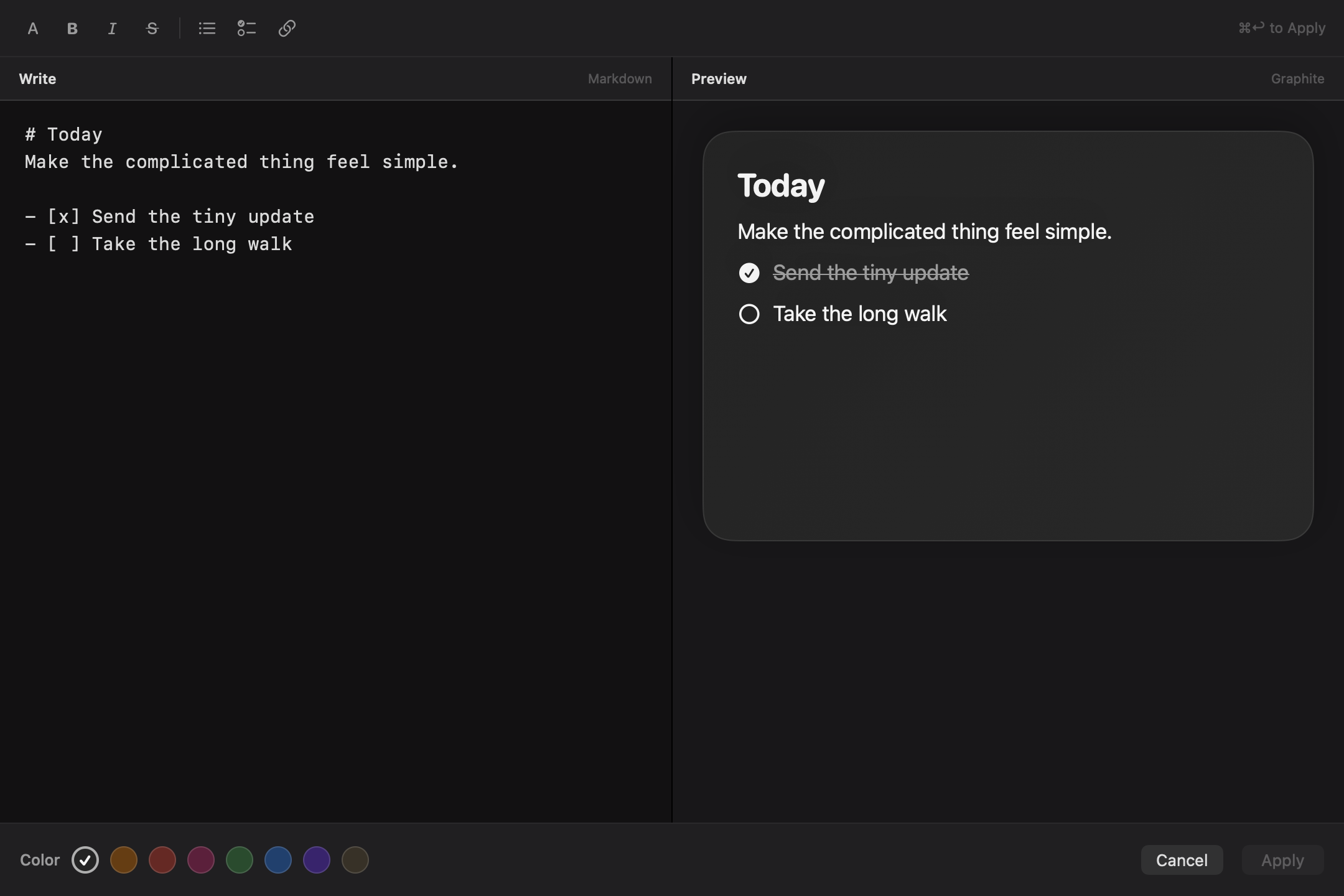
In Scribs, the saved note and its widget are connected. Write the note first, then choose it for the widget.
- Open Scribs, create a note, and write the words you want to keep visible. Choose a colour if it helps you recognise it.
- Control-click an empty area of your Mac desktop and choose Edit Widgets. Find Scribs and add a widget in a size that fits your note.
- Control-click the new widget and choose Edit Widget. Select your saved Scrib.
- When the words need changing, edit the note in Scribs. Use the widget to keep it in sight.
If you cannot see the widget
First check that you added it to the desktop and selected a saved Scrib. If desktop widgets are hidden, check the widget settings in System Settings under Desktop & Dock. The available controls can vary with your macOS version.
If Scribs is not in the widget gallery, open the app and check that your Mac meets the system requirement.
Keep only what earns the space
Try one widget for a few days before adding more. Choose a larger size when the words need it; shorten the note if it keeps becoming a document.
Scribs includes three saved notes free, with widgets, colours, and formatting. One purchase unlocks more notes and iCloud sync across your Macs. You do not need a subscription.